
Prerequisites: Ensure you have completed the Business Manager Setup and Configuration phases before configuring jobs.
SureBright Products Export
This job uses SureBright’s API to traverse the entire storefront catalog and export each Simple and Variant Product that is, at the time of the job run, merchandisable (online and in stock).Configuration Steps
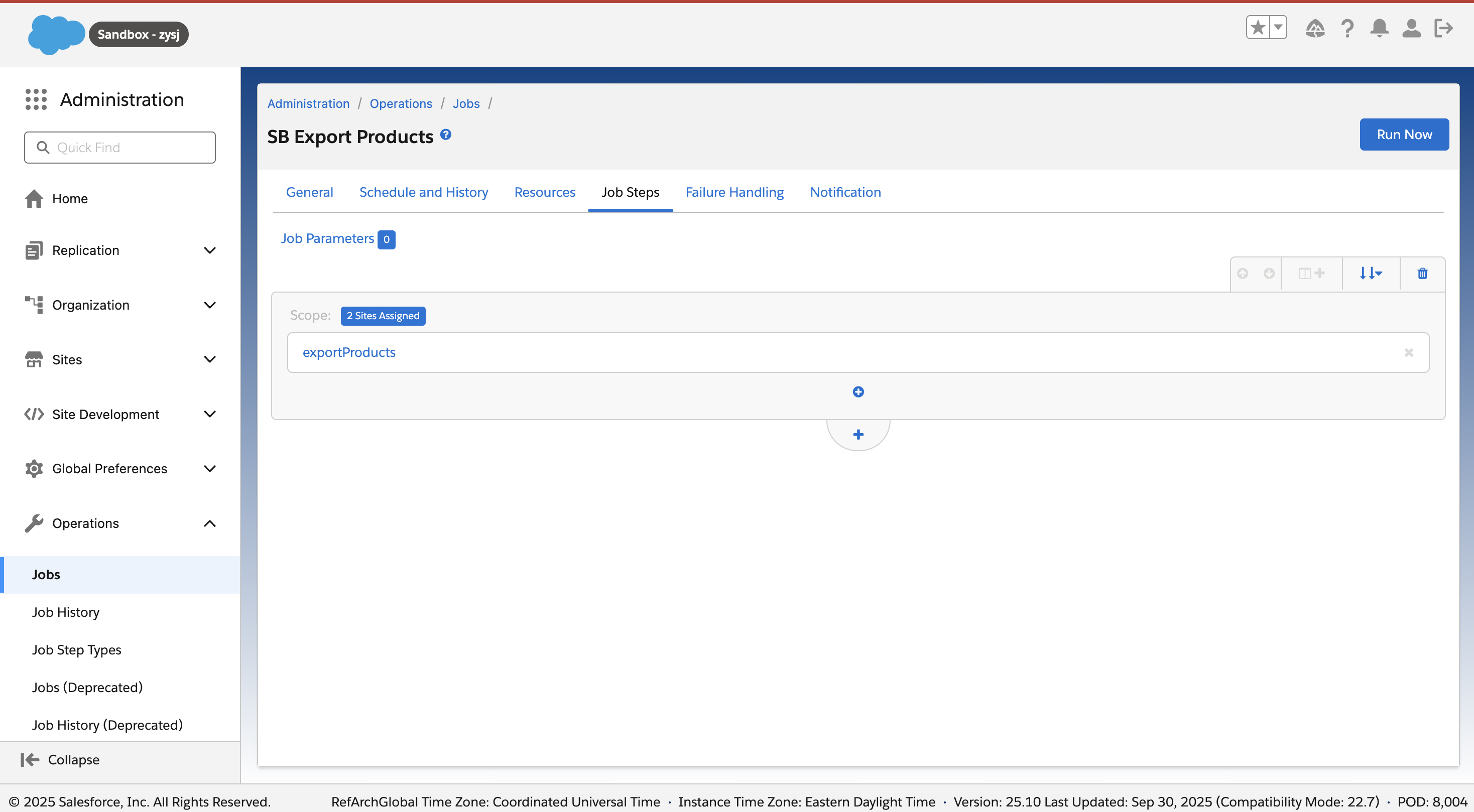
- Go to Business Manager → Administration → Operations → Jobs. Select the SureBright Products Export job.
- Go to Job Steps and select Scope. Configure this to run in the scope of the site integrating with SureBright.
- Ensure this job is triggered at least once without errors and notify SureBright after the successful run. SureBright will confirm if the product sync was successful.
- Schedule this to run at the preferred cadence (SureBright recommends once per day), at a time that’s most suitable for a recurring job setup, ideally after the catalog is being updated.
Job Parameters
| Parameter | Description | Default Value |
|---|---|---|
| Scope | Site scope for product export | Your site identifier |
| Frequency | How often to run the job | Daily |
| Time | Preferred execution time | After catalog updates |
| Error Handling | Retry and notification settings | 3 retries, email notification |
Best Practice: Schedule this job to run during low-traffic hours to minimize impact on storefront performance.
SureBright Orders Creation
This job uses SureBright’s Orders API to consume the orders. When this job is triggered, it sends an Order generation request to SureBright and SureBright will generate any necessary service contracts or lead tokens (for Post Purchase flow).Configuration Steps
- Go to Business Manager → Administration → Operations → Jobs. Select the SureBright Orders Creation job.
- Configure the job scope to your site integrating with SureBright.
- Set the job to run at frequent intervals (recommended: every hour) for real-time order processing.
- Configure error handling and retry mechanisms.
Job Parameters
| Parameter | Description | Default Value |
|---|---|---|
| Scope | Site scope for order processing | Your site identifier |
| Frequency | How often to run the job | Every hour |
| Queue Processing | Number of orders to process per run | 50 orders |
| Error Handling | Retry and notification settings | 3 retries, email notification |
Job Monitoring and Management
Monitoring Job Execution
- Job Status: Go to
Administration → Jobs → Job Statusto monitor job execution - Job Logs: Review job logs for errors and performance metrics
Common Job Issues
Job Execution Failures- Check job logs for specific error messages
- Verify API connectivity and credentials
- Ensure sufficient system resources
- Verify product data format and structure
- Check order data completeness
- Review contract creation parameters
Next Steps
Once you have configured all necessary jobs:- Test Integration: Run comprehensive tests using the Testing Guide
- Go Live: Deploy to production and monitor job execution
Troubleshooting
Common Job Issues
Job Execution Failures- Check job logs for specific error messages
- Verify API connectivity and credentials
- Ensure sufficient system resources
- Verify product data format and structure
- Check order data completeness
- Review contract creation parameters
Getting Help
If you encounter issues with job configuration:- Contact your SureBright representative for immediate assistance
- Email support@surebright.com for technical support