
Business Manager Setup
The integration follows SFRA’s extensibility and modularity principles and is built on top of app_storefront_base and related modules. It must be implemented in an environment that adheres to SFRA guidelines.Prerequisites: Ensure you have administrative access to your SFCC Business Manager instance before proceeding with these steps.
Upload Cartridge & Include in Cartridge Path
- Upload the surebright_sfra cartridge to your SFRA sandbox environment.
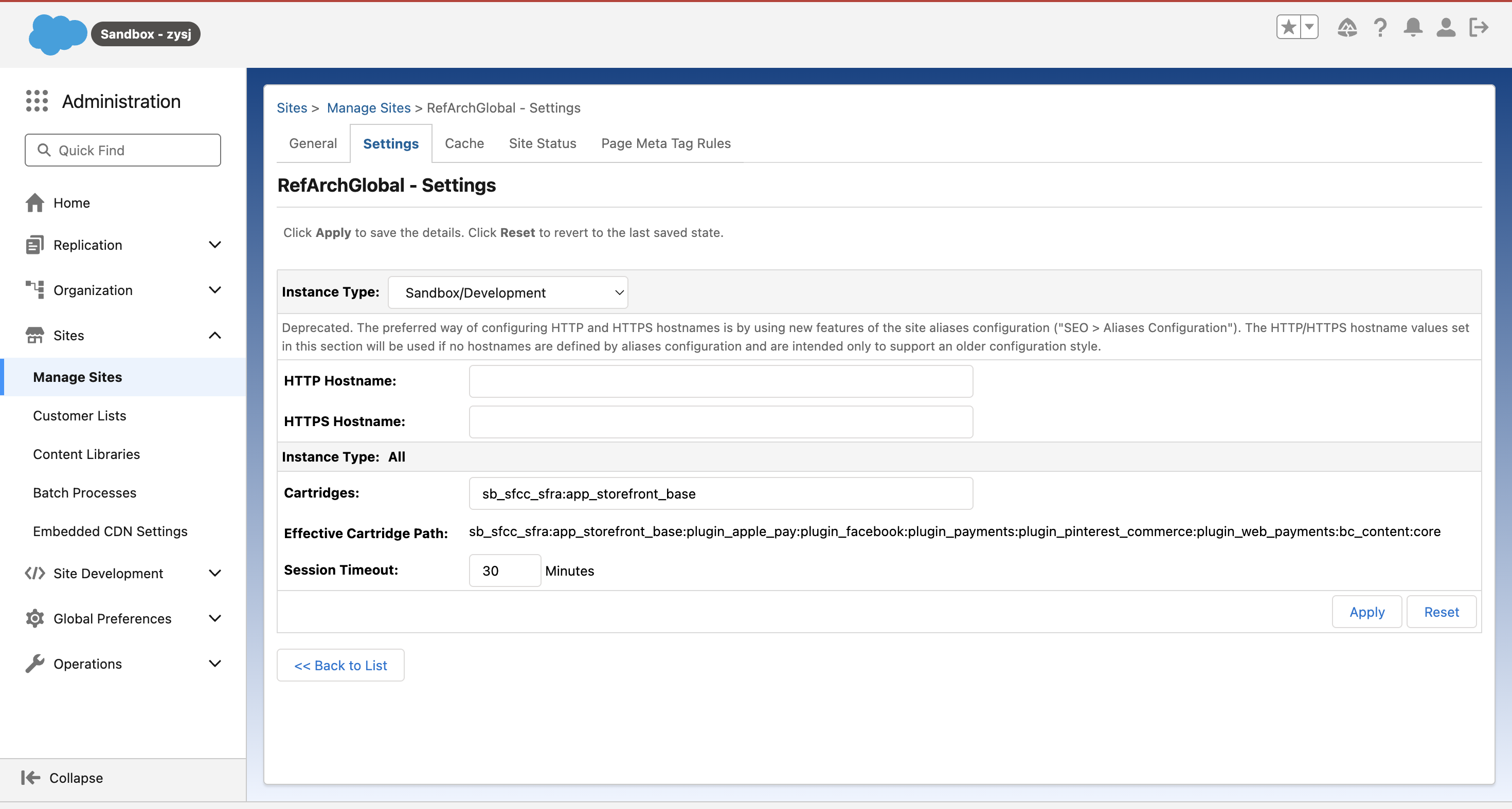
- Go to Business Manager → Administration → Site → Manage Sites. Select your desired site and go to Settings.
- At the beginning of the Cartridge Path, add
surebright_sfra:to include the cartridge in your current site’s configuration.
Import Metadata
- Go to Business Manager → Administration → Site Development → Import & Export
- Upload the following files from the SureBright integration package:
- system-objecttype-extensions.xml
- custom-objecttype-definitions.xml
- Go to Business Manager → Administration → Site Development → Import & Export → Metadata → Import
- You should see both files as available for import. Proceed to importing both files.
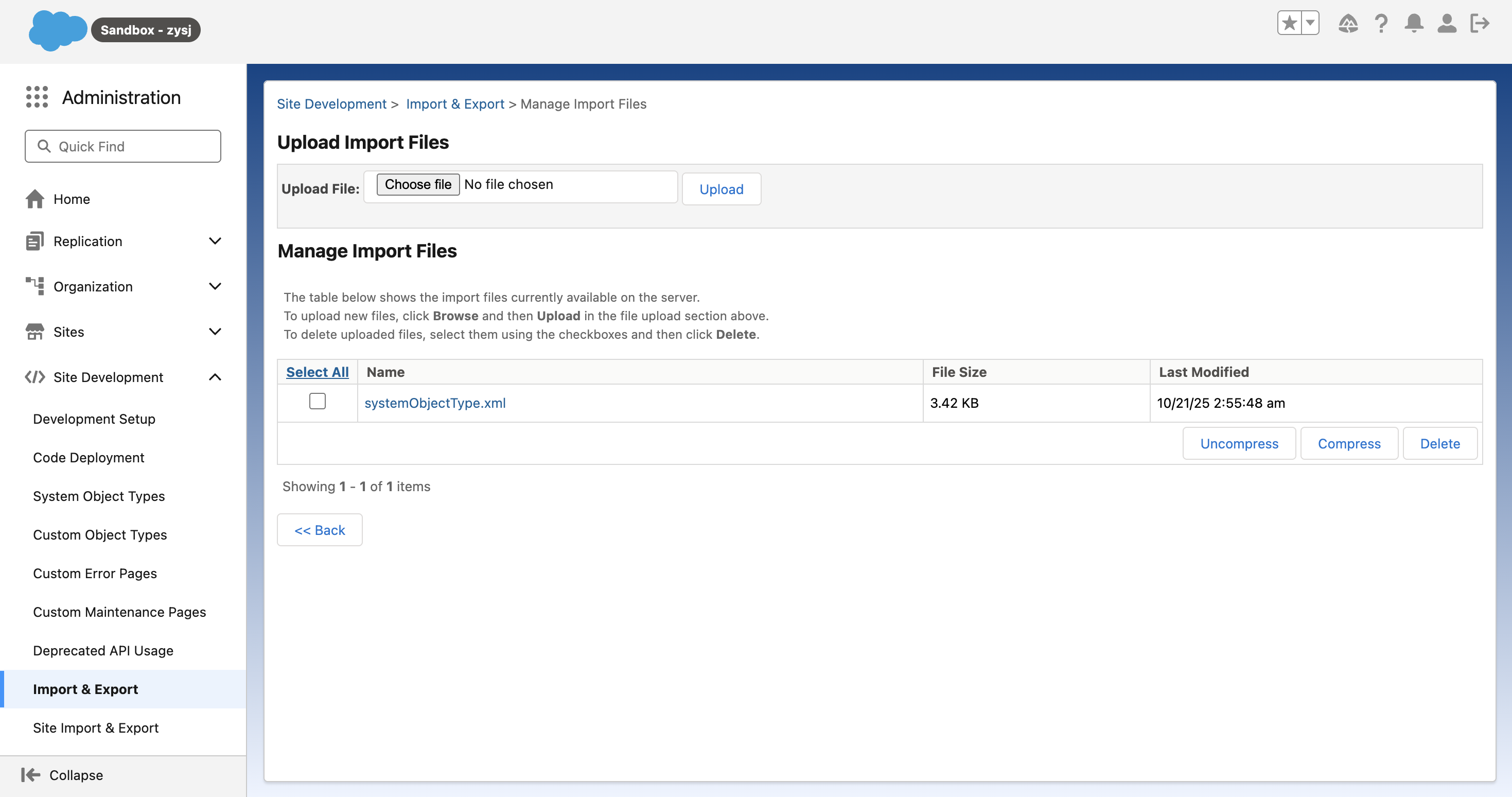
These files contain custom object definitions and system extensions required for the SureBright integration to function properly.
Import Custom Jobs
- Go to Business Manager → Administration → Operations → Import & Export
- Upload the following file: jobs.xml
- Go to Business Manager → Administration → Operations → Import & Export → Jobs → Import
- You should see the jobs file as available for import. Proceed to importing it.
The jobs file contains automated job definitions for product synchronization, order processing, and contract creation. These will be configured in detail in the Jobs Guide.
Import SureBright Product Catalog
- Select your site integrating with SureBright
- Go to Business Manager → Merchant Tools → Products and Catalogs → Inventory List Import
- Upload the following file: catalog.xml
- This will import variant products according to unique warranty tenure and price.
We recommend keeping the surebright products as a separate master catalog for better visibility and management.
Verify Installation
After completing all import steps, verify the installation by checking:1. Cartridge Status
- Go to
Administration → Sites → [Your Site] → Cartridges - Verify
surebright_sfracartridge is listed and active - Check for any compatibility warnings or conflicts
2. Job Definitions
- Go to
Administration → Jobs → Job Definitions - Verify SureBright jobs are imported:
SureBrightProductsExportSureBrightOrdersCreation
3. Product Catalog
- Go to
Merchant Tools → Products → Product Catalog - Verify warranty products are imported with correct SKUs
- Check that products are assigned to your site’s catalog
Next Steps
Once you have completed the Business Manager setup:- Configure User Access: Follow the Configuration Guide to set up API clients and user accounts
- Set Up Data Sync: Use the Jobs Guide to configure automated synchronization jobs
- Test Integration: Run comprehensive tests using the Testing Guide
Troubleshooting
Common Issues
Cartridge Upload Fails- Verify you have administrative permissions
- Check cartridge compatibility with your SFCC version
- Ensure sufficient disk space in your sandbox
- Verify XML file format and structure
- Check for existing conflicting custom objects
- Review import logs for specific error messages
- Verify inventory list and pricebook assignments
- Check product SKU naming conventions
- Ensure site configuration is complete
Getting Help
If you encounter issues during setup:- Check the FAQs for detailed answered questions
- Contact your SureBright representative for immediate assistance
- Email support@surebright.com for technical support